
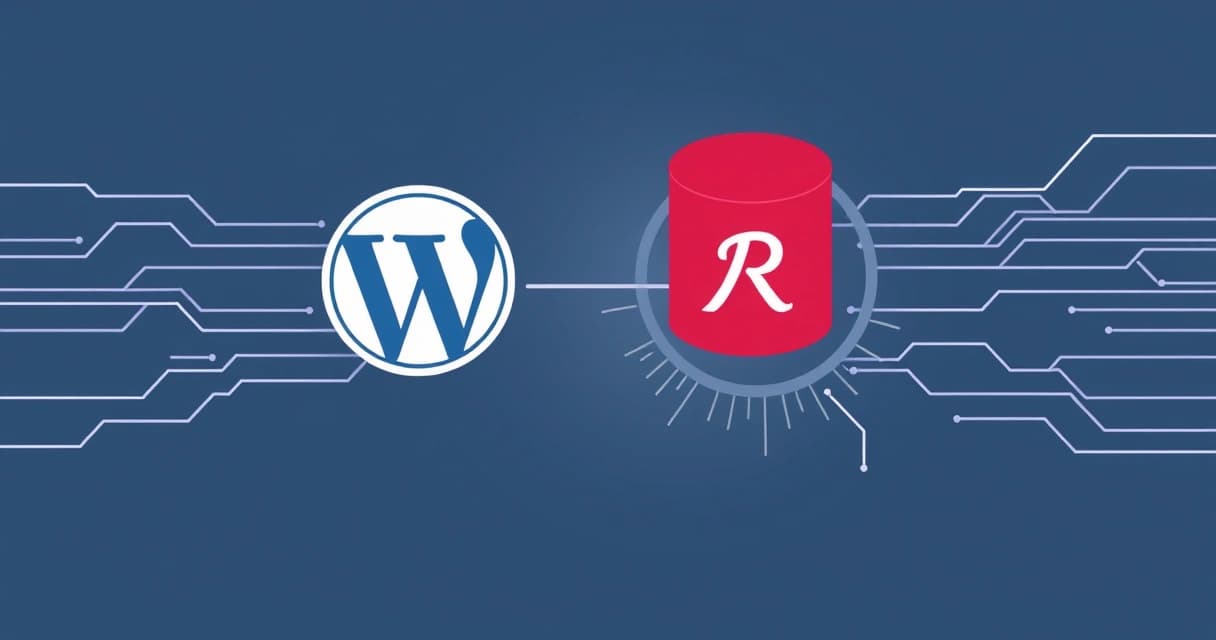
Redis object cache significantly speeds up WordPress by storing database query results and other frequently accessed data in RAM, reducing the load on your database server. To set up Redis object cache for WordPress, you typically install the Redis server on your hosting environment, install the php-redis extension, and then use a WordPress plugin or configure wp-config.php with a drop-in file, enhancing site responsiveness for visitors as of 2026-04. This tutorial walks through the essential steps for a robust implementation.
Implementing Redis object caching can dramatically improve the user experience for WordPress sites, especially those with dynamic content or high traffic. It reduces the number of database queries WordPress needs to perform on each page load, which in turn lowers server resource consumption and accelerates content delivery. This optimization is crucial for maintaining competitive site speeds in 2026, as search engines increasingly prioritize performance.
Understanding Redis Object Caching for WordPress
Why Object Caching Matters
WordPress, by default, makes numerous database queries for every page request to retrieve posts, comments, settings, and other dynamic content. Without caching, these queries are executed repeatedly, even for content that hasn't changed. This process consumes CPU cycles and database I/O, leading to slower page load times as traffic increases.
Object caching steps in to intercept these repeated queries. Instead of hitting the database every time, the results of these queries are stored in a fast, in-memory data store like Redis. When WordPress requests the same data again, the cache returns it almost instantly, bypassing the slower database operation entirely. This mechanism is distinct from page caching or browser caching, which focus on serving static HTML or client-side assets.
How Redis Works with WordPress
Redis (Remote Dictionary Server) is an open-source, in-memory data structure store, used as a database, cache, and message broker. It handles various data structures, including strings, hashes, lists, sets, and sorted sets, making it highly versatile. For WordPress, Redis primarily serves as an external object cache. The WordPress Object Cache API provides a standardized way for plugins and themes to store and retrieve data from a caching system.
When you enable Redis object caching, a special "drop-in" file (object-cache.php) is placed in your wp-content directory. This file redirects all WordPress object cache requests to Redis. The php-redis extension acts as the bridge, allowing PHP (and thus WordPress) to communicate directly with the Redis server. This setup ensures that data like post meta, user roles, and transient options are fetched from RAM instead of MySQL, delivering significant speed gains. You can find more details on the WordPress Object Cache API on the WordPress Developer Resources site, which provides comprehensive documentation for developers.
Prerequisites for Redis Object Cache Setup
Before you can implement Redis object caching for your WordPress site, several fundamental components must be in place. These prerequisites ensure that your server environment can support Redis and that WordPress can interact with it effectively. Missing any of these steps will prevent successful setup.
Server Environment Considerations
You need a server with root or sudo access, typically a Virtual Private Server (VPS) or a dedicated server. Shared hosting environments often restrict the ability to install custom server software like Redis or the necessary PHP extensions. While some managed WordPress hosts offer Redis as a built-in feature, this tutorial focuses on self-managed or VPS setups. A managed WordPress provider like Valebyte might offer one-click Redis integration, simplifying these steps considerably.
Ensure your server has sufficient RAM. While Redis itself is lightweight, the amount of data it caches can grow. A minimum of 1GB RAM is generally recommended for a server running WordPress, a web server (Nginx or Apache), PHP, MySQL, and Redis, with more RAM needed for larger sites or higher traffic. For a WordPress site with 50,000 monthly visits, a VPS with at least 4GB RAM would be a reasonable starting point, as outlined in our VPS requirements for a 50k monthly visit WordPress site guide.
PHP Extension Requirements
WordPress, being a PHP application, requires a PHP extension to communicate with the Redis server. The most common and recommended extension is php-redis. This extension provides a robust interface for PHP applications to interact with Redis. Without it, WordPress cannot send or retrieve cached objects from your Redis instance.
Verify your PHP version. As of 2026-04, PHP 8.1 or newer is widely recommended for performance and security. The installation commands for php-redis may vary slightly depending on your specific PHP version (e.g., php8.2-redis for PHP 8.2). More details on the extension can be found in the PHP Redis extension manual.
Installing the Redis Server
The first major step is to install the Redis server software on your Linux operating system. The process varies slightly between Debian/Ubuntu-based distributions and Red Hat/CentOS-based distributions.
On Ubuntu/Debian
For Ubuntu (e.g., Ubuntu 24.04 LTS) or Debian, you can install Redis from the default repositories. Start by updating your package lists, then install the redis-server package:
sudo apt update
sudo apt install redis-server -y
Once installed, Redis will usually start automatically. You can verify its status using systemctl:
sudo systemctl status redis-serverThe output should indicate "active (running)". If it's not running, you can start and enable it to launch on boot:
sudo systemctl enable redis-server
sudo systemctl start redis-server
On CentOS/RHEL
For CentOS or Red Hat Enterprise Linux (RHEL), you can install Redis from the EPEL (Extra Packages for Enterprise Linux) repository. First, ensure EPEL is enabled, then install the redis package:
sudo yum install epel-release -y
sudo yum install redis -y
After installation, start and enable the Redis service:
sudo systemctl enable redis
sudo systemctl start redis
Verify the status:
sudo systemctl status redisEnsure the firewall (e.g., firewalld) allows connections to Redis if you plan to connect from a different server or specific network segment. By default, Redis listens on port 6379, typically bound to 127.0.0.1 for local access, which is usually sufficient for WordPress.
Security Tip: Always configure Redis to listen only on
127.0.0.1(localhost) unless absolutely necessary for your architecture, and protect it with a strong password. Exposing Redis to the internet without proper authentication is a significant security risk.
For more advanced Redis configurations, including security hardening, consult the official Redis documentation on security.
Installing the PHP Redis Extension
With the Redis server running, the next step is to install the PHP extension that allows WordPress to communicate with it. This is typically done via your system's package manager.
For PHP 8.x
Assuming you are running a modern PHP version like PHP 8.2 or 8.3 (as of 2026-04), the package name will include your PHP version. For Ubuntu/Debian:
sudo apt install php8.2-redis -y # Adjust 'php8.2' to your actual PHP version, e.g., php8.3-redis
sudo phpenmod redis
sudo systemctl restart apache2 # If using Apache
sudo systemctl restart php8.2-fpm # If using Nginx with PHP-FPM
For CentOS/RHEL with PHP-FPM, you might use yum or dnf with Remi's repository:
sudo yum install php-redis -y # Or dnf install php-redis -y
sudo systemctl restart php-fpm
After installation and restarting your web server or PHP-FPM service, you can verify that the redis extension is loaded. Create a PHP info file (e.g., info.php) in your web root with <?php phpinfo(); ?> and look for "redis" in the output. Delete this file immediately after verification for security reasons. For general information on Redis, you can refer to the official Redis documentation.
Configuring WordPress for Redis Object Cache
Once Redis server and the PHP extension are installed, you need to tell WordPress to use Redis for object caching. There are two primary methods: using a dedicated plugin or manually configuring wp-config.php.
Using the Redis Object Cache Plugin (Recommended)
This is the simplest and most recommended method for most users. The "Redis Object Cache" plugin handles the necessary file placements and configurations for you. As of 2026-04, this plugin is actively maintained and widely compatible.
- Install the Plugin: Log into your WordPress admin dashboard. Navigate to "Plugins" > "Add New". Search for "Redis Object Cache" by Till Krüss. Install and activate the plugin.
- Configure the Plugin: After activation, go to "Settings" > "Redis". You should see a status indicating whether Redis is connected. Click the "Enable Object Cache" button. This action automatically places the
object-cache.phpdrop-in file into yourwp-contentdirectory. - Verify Caching: The plugin's settings page will show the cache status, including connection information and potentially cache statistics. You can also use tools like
redis-cli monitoron your server to see commands being executed.
The plugin also allows you to define connection parameters in your wp-config.php file for more control. These constants tell the plugin how to connect to Redis. Here's an example of common settings you might add before the /* That's all, stop editing! Happy publishing. */ line in wp-config.php:
define( 'WP_CACHE_KEY_SALT', 'your-unique-salt-prefix-' );
define( 'WP_REDIS_HOST', '127.0.0.1' );
define( 'WP_REDIS_PORT', 6379 );
define( 'WP_REDIS_DATABASE', 0 ); // Use a different database for each site if you have multiple WordPress installs
define( 'WP_REDIS_PASSWORD', 'your_redis_password' ); // Only if Redis is password-protected
define( 'WP_REDIS_TIMEOUT', 1 );
define( 'WP_REDIS_READ_TIMEOUT', 1 );
define( 'WP_REDIS_CLIENT', 'phpredis' ); // Or 'predis' if you use that library
Remember to replace 'your-unique-salt-prefix-' with a strong, unique string for your site. This salt prevents cache collisions if you run multiple WordPress sites on the same Redis instance.
Manual wp-config.php Setup (Advanced)
For those who prefer a plugin-free approach or have specific deployment needs, you can set up Redis object caching manually. This involves copying the object-cache.php drop-in file directly and configuring wp-config.php.
- Download
object-cache.php: You can download theobject-cache.phpfile from the official Redis Object Cache plugin's GitHub repository or extract it from the plugin's zip file. - Place the Drop-in File: Copy the downloaded
object-cache.phpfile into your WordPress site'swp-contentdirectory. Ensure it is directly inwp-content, not inside a plugin or theme folder. - Configure
wp-config.php: Add the same Redis connection constants as described in the plugin section to yourwp-config.phpfile, before the/* That's all, stop editing! Happy publishing. */line. Ensure you defineWP_CACHEas true.
define('WP_CACHE', true); // Enable WordPress's native object caching mechanism
define( 'WP_CACHE_KEY_SALT', 'your-unique-salt-prefix-' );
define( 'WP_REDIS_HOST', '127.0.0.1' );
define( 'WP_REDIS_PORT', 6379 );
// ... other WP_REDIS_ constants as needed ...
After saving wp-config.php, WordPress will automatically detect the object-cache.php drop-in and attempt to connect to Redis using the provided credentials. This manual method requires careful attention to detail but offers greater control over your caching setup.
Verifying and Monitoring Redis Cache
After setting up Redis object cache, it's crucial to verify that it's working correctly and monitor its performance to ensure your site is benefiting as expected. Proper monitoring helps identify potential issues early.
Checking Redis Status
The simplest way to check if Redis is active and responding is by using the redis-cli tool on your server. This command-line interface allows you to interact directly with the Redis server.
redis-cli pingA successful connection will return PONG. You can also view general server information, including client connections, memory usage, and key statistics, with the info command:
redis-cli infoLook for sections like # Clients, # Memory, and # Stats. The connected_clients value should be greater than 0 if WordPress is actively connecting to Redis. The used_memory_human field gives you an idea of how much RAM Redis is currently consuming.
Monitoring Cache Hit/Miss Ratio
A key metric for object cache effectiveness is the hit/miss ratio. A high hit ratio (e.g., 80% or more) indicates that most requests for cached objects are served from Redis, rather than hitting the database. The Redis Object Cache plugin often displays these statistics directly in the WordPress admin panel.
Alternatively, you can query Redis directly for these statistics using redis-cli. The info stats command provides relevant counters:
redis-cli info statsLook for:
keyspace_hits: The number of successful lookups in the key space (cache hits).keyspace_misses: The number of failed lookups in the key space (cache misses).
hits / (hits + misses). A low hit ratio might indicate that your cache is being invalidated too frequently, or that your site's dynamic content changes too rapidly for effective object caching.You can also use the redis-cli monitor command to see all commands being processed by the Redis server in real-time. This can be very verbose but useful for debugging specific interactions between WordPress and Redis.
Best Practices and Troubleshooting
To maximize the benefits of Redis object caching and avoid common pitfalls, consider these best practices and troubleshooting tips. A well-configured cache is a powerful performance tool, but an improperly managed one can cause unexpected behavior.
Persistent vs. Non-Persistent Connections
By default, php-redis uses non-persistent connections. This means a new connection to Redis is established and closed for each PHP request. For many WordPress sites, this is perfectly acceptable. However, for very high-traffic sites, the overhead of constantly opening and closing connections can add up.
Persistent connections (using pconnect instead of connect in the underlying PHP extension) maintain open connections between PHP-FPM processes and the Redis server. This can reduce latency but also requires careful management to prevent too many open connections. The Redis Object Cache plugin offers an option to enable persistent connections, or you can configure it manually using WP_REDIS_CLIENT_OPTIONS. It is generally recommended to start with non-persistent connections and only switch to persistent if profiling reveals connection overhead as a bottleneck.
For detailed information on PHP's Redis client options, refer to the php-redis GitHub documentation.
Cache Invalidation Issues
One of the most common issues with any caching system is stale data, where users see outdated content because the cache hasn't been properly invalidated. The Redis Object Cache plugin is designed to handle invalidation automatically when posts are updated, comments are made, or settings change. However, sometimes issues can arise:
- Aggressive Page Caching: If you use a separate page caching plugin (e.g., WP Rocket, LiteSpeed Cache) or CDN (e.g., Cloudflare) alongside Redis, ensure their settings are compatible. Sometimes, aggressive page caching can serve stale HTML even if object cache is fresh.
- Custom Code: Custom themes or plugins that interact with the WordPress database without using the standard API might bypass cache invalidation. Developers should always use WordPress functions like
wp_cache_set()andwp_cache_delete(). - Manual Flush: If you suspect stale data, you can always manually flush the Redis object cache from the plugin's settings page in WordPress, or by running
wp redis flushvia WP-CLI.
Regularly clearing your browser cache and using incognito mode during testing can help diagnose if you are seeing cached content from the server or your browser.
Maintaining a high-performing WordPress site involves more than just object caching. Consider optimizing your MySQL database, using a CDN, and ensuring your PHP version is up-to-date. Benchmarking tools can help you understand the impact of various optimizations, as discussed in our WordPress 6.x Performance: Managed Hosting vs. VPS Benchmarks article.
Setting up Redis object cache for WordPress is a powerful way to enhance your site's speed and responsiveness. By following these steps, from server installation to WordPress configuration and verification, you can significantly offload your database and provide a smoother experience for your visitors. Remember to monitor your cache performance and troubleshoot any issues proactively to maintain optimal site health.