
Understanding Zero-Downtime VPS Migration Principles
The concept of zero-downtime migration is built on carefully orchestrated technical procedures designed to keep services accessible during a server transition. It contrasts sharply with traditional "lift and shift" methods that involve a planned service outage. The goal is to make the migration transparent to users, ensuring they never encounter an "unavailable" message.Key Concepts: Replication, DNS, and Traffic Redirection
Zero-downtime migration relies on several foundational technical principles. Continuous data replication ensures that the new target VPS has an up-to-date, byte-for-byte copy of all application files, configuration files, and databases from the source VPS. This typically involves efficient tools likersync for filesystem synchronization and database-specific replication mechanisms for systems such as MySQL 8.0 or PostgreSQL 16. The initial full copy is followed by incremental updates, often automated.DNS (Domain Name System) plays a pivotal role by directing user traffic to the correct server IP address. Careful management of DNS Time-To-Live (TTL) values is crucial for a smooth transition, allowing for rapid propagation of IP changes. Modern DNS providers also offer advanced features for faster updates. Traffic redirection, often achieved through a load balancer or a reverse proxy (like Nginx 1.29 or HAProxy 2.9), acts as an intelligent traffic director. This allows administrators to seamlessly switch user requests from the old VPS to the new one once it's fully operational and validated, without directly exposing the IP change to end-users until the final DNS cutover.
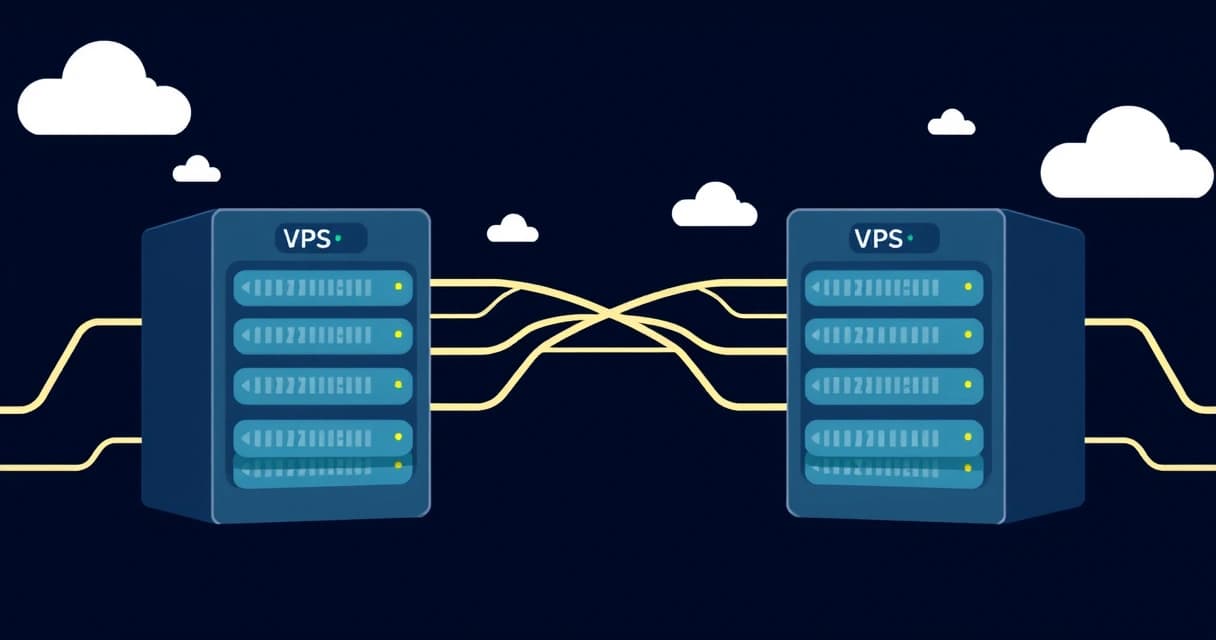
The core idea is to have both the old and new VPS instances running concurrently, potentially handling some traffic, for a brief overlap period. This dual-server operation allows for thorough testing of the new environment while the old one serves as the primary production system and a safety net. When confidence in the new VPS's stability and performance is high, traffic is incrementally or instantly redirected. This phased approach minimizes risk, a crucial consideration for any live production system in 2026.
Why Zero Downtime Matters in 2026
In today's highly competitive and interconnected digital economy, even a few minutes of downtime can translate into significant financial losses, irreparable reputational damage, and decreased customer loyalty. For e-commerce platforms, a service interruption during peak shopping hours can mean lost sales, abandoned carts, and frustrated customers who may switch to a competitor. For SaaS applications, downtime directly impacts Service Level Agreement (SLA) compliance, potentially leading to credit payouts or user churn.Modern users expect continuous availability, and any disruption can erode trust. Furthermore, search engines like Google may penalize websites experiencing frequent or prolonged outages, negatively affecting SEO rankings and organic visibility. As of 2026-04, the global digital landscape demands that businesses prioritize high availability and robust infrastructure across all their digital services. A zero-downtime migration strategy is not merely a technical preference; it's a business imperative that safeguards operations and ensures uninterrupted service delivery.
Maintaining continuous service availability during a migration is a non-negotiable requirement for modern businesses, directly impacting revenue, reputation, and customer satisfaction in 2026.
Pre-Migration Planning and Preparation
Careful and thorough planning is the cornerstone of any successful zero-downtime migration. Skipping or rushing this phase often leads to unforeseen complications, extended troubleshooting, and, ironically, unwanted downtime. This preparation typically consumes more time than the actual execution of the migration steps, but its investment pays significant dividends in reliability and peace of mind.Choosing Your New VPS Provider
Selecting the right new VPS provider is a critical initial step that impacts the entire migration process and your future hosting experience. Evaluate potential providers based on a comprehensive set of factors including hardware specifications (CPU cores, RAM, SSD/NVMe storage), network performance and latency, available data center locations, quality of technical support, and the overall pricing structure. Look for offerings that align specifically with your application's resource requirements, whether it's CPU-optimized for heavy computation, memory-intensive for large databases, or requires high I/O for frequent disk operations. For self-hosting and demanding development workloads, many professionals consider providers like Valebyte, which offer a range of managed and unmanaged VPS options. Before making a final decision, consult recent performance benchmarks, user reviews, and uptime guarantees as of 2026-04. For a deeper dive into operating system choices and their implications, you can compare Debian vs Ubuntu for VPS Hosting to match your system administration preferences.Inventorying Your Current VPS Setup
Documenting every detail of your current VPS configuration is an absolutely essential step. This comprehensive inventory should include: the exact operating system version (e.g., Ubuntu 22.04 LTS, AlmaLinux 9.3), all installed software packages (web servers like Nginx 1.29 or Apache HTTP Server 2.4.60, specific database versions such as PostgreSQL 16.2 or MariaDB 10.11, exact PHP 8.3.11 or Python 3.11.8 versions, Node.js runtimes), custom configurations (e.g., Nginx virtual host files, PHP-FPM pool configurations), active cron jobs, detailed firewall rules (e.g., UFW profiles, nftables chains), configured SSL certificates (e.g., Let's Encrypt certificates managed by Certbot 2.9.0), and all critical network settings. Make a precise list of all listening ports and their associated services. This detailed inventory serves as the definitive blueprint for accurately replicating your environment on the new VPS, preventing configuration drift and ensuring compatibility.# Example inventory commands for an Ubuntu-based VPS (as of 2026-04)
echo "--- Installed Packages ---"
dpkg --get-selections | grep -v deinstall > installed_packages_old_vps.txt
echo "--- Listening Ports ---"
sudo ss -tulpn | grep LISTEN > listening_ports_old_vps.txt
echo "--- UFW Firewall Rules ---"
sudo ufw status verbose > ufw_rules_old_vps.txt
echo "--- Cron Jobs (system-wide) ---"
sudo find /etc/cron.* -type f -print -exec cat {} \; > system_cron_jobs_old_vps.txt
echo "--- Cron Jobs (user-specific) ---"
crontab -l > user_cron_jobs_old_vps.txt
echo "--- Nginx/Apache Configuration Files ---"
sudo find /etc/nginx/ -name "*.conf" -print -exec cat {} \; > nginx_configs_old_vps.txt
# Or for Apache: sudo find /etc/apache2/ -name "*.conf" -print -exec cat {} \; > apache_configs_old_vps.txt
echo "Inventory complete. Check generated .txt files."
Preparing the Target VPS
Once your new provider is chosen and your old VPS inventoried, provision your new VPS instance. Install the identical operating system and core software versions as present on your old server to minimize compatibility issues. This includes essential utilities likersync, your chosen web server (e.g., Nginx), your database server (e.g., MySQL), and any language runtimes or frameworks your application depends on. Configure fundamental security measures from the outset, such as disabling password-based SSH login in favor of SSH key-based authentication, setting up a robust firewall (like ufw), and potentially installing intrusion detection systems like Fail2ban 0.12 (released August 2023). Ensure network connectivity is thoroughly tested and that all necessary inbound and outbound ports for your applications are correctly opened in the firewall. A solid starting point for initial security hardening can be found in an Ubuntu 24.04 VPS Hardening Checklist.# Basic setup and hardening steps on a new Ubuntu 24.04 VPS (as of 2026-04)
sudo apt update && sudo apt upgrade -y
sudo apt install rsync nginx mysql-server certbot python3-certbot-nginx -y
# Configure UFW firewall
sudo ufw allow OpenSSH
sudo ufw allow 'Nginx Full' # Allows HTTP and HTTPS
sudo ufw enable
# Disable password authentication for SSH
sudo sed -i 's/#PasswordAuthentication yes/PasswordAuthentication no/g' /etc/ssh/sshd_config
sudo systemctl restart sshd
# Install Fail2ban for brute-force protection
sudo apt install fail2ban -y
sudo systemctl enable fail2ban
sudo systemctl start fail2ban
echo "New VPS basic setup complete. Remember to copy SSH keys."
Step-by-Step Zero-Downtime Migration Process
This section outlines the core sequence of actions required to move your VPS with minimal disruption. The precise order of these steps is critical, focusing on establishing robust synchronization channels before initiating the final traffic cutover. Each step builds upon the previous one, ensuring data integrity and continuous service.-
Set up Initial Data Synchronization (rsync)
Begin by performing an initial full copy of your application files, static assets, and critical configuration files from the old VPS to the new one using
rsyncover SSH. This first synchronization can be time-consuming depending on the total volume of data. Use the-a(archive mode) flag for preserving permissions and ownership,-zfor compression, and--progressfor visibility. Exclude temporary files, caches, and logs to optimize transfer speed.
After the initial sync, establish a mechanism to keep the data continually updated. The most common approach is to set up a cron job on the old VPS to periodically run incremental# Initial rsync command from old VPS to new VPS (run from old VPS) # Ensure SSH keys are set up for passwordless access rsync -avz --progress --exclude='/var/www/your_app/cache/' \ --exclude='/var/www/your_app/logs/' \ /var/www/your_app/ user@new_vps_ip:/var/www/your_app/ # Example for /etc config files rsync -avz --progress --exclude='modprobe.d/' /etc/ user@new_vps_ip:/etc/rsynccommands. This ensures that any file changes on the production server are quickly mirrored to the new VPS, maintaining near real-time data consistency. A short interval, such as every 1 or 5 minutes, is often appropriate.# Add to old VPS cron job (e.g., 'crontab -e') for incremental sync # This command runs every minute, syncing changes and deleting removed files on source * * * * * rsync -az --delete --exclude='/var/www/your_app/cache/' \ --exclude='/var/www/your_app/logs/' \ /var/www/your_app/ user@new_vps_ip:/var/www/your_app/ \ >> /var/log/rsync_incremental_sync.log 2>&1 - Configure Database Replication For applications relying on databases like MySQL, PostgreSQL, or MariaDB, establishing replication is crucial for zero-downtime. Configure the old VPS's database as the master and the new VPS's database as the slave. This setup ensures that all writes and updates occurring on the old, live database are immediately mirrored to the new database instance. This process generally involves enabling binary logging on the master, creating a replication user, and configuring the slave to connect to the master and start reading the binary logs. Detailed setup instructions are available in the official MySQL 8.0 Replication documentation or PostgreSQL 16 Warm Standby documentation. Verify that replication lag is minimal and that all data is consistently synchronized before proceeding.
-
Configure Web Server, Application, and Services on New VPS
On the new VPS, meticulously configure your web server (e.g., Nginx 1.29, Apache 2.4.60), application code, and any auxiliary services (e.g., PHP-FPM 8.3, Node.js process managers, Redis 7.2) to mirror the old server's setup. This includes virtual host files, SSL certificates (obtained via Certbot), environment variables, database connection strings (pointing to the new database slave), and any required systemd services or cron jobs. Thoroughly test the application's functionality by accessing it directly via the new VPS's IP address or a temporary hostname. Ensure all routes, APIs, and administrative interfaces are working correctly. This testing phase is critical; any issues found now can be resolved without impacting live users.
# Example Nginx configuration for yourdomain.com on new VPS server { listen 80; listen [::]:80; server_name yourdomain.com www.yourdomain.com; return 301 https://$host$request_uri; } server { listen 443 ssl http2; listen [::]:443 ssl http2; server_name yourdomain.com www.yourdomain.com; ssl_certificate /etc/letsencrypt/live/yourdomain.com/fullchain.pem; ssl_certificate_key /etc/letsencrypt/live/yourdomain.com/privkey.pem; ssl_session_cache shared:SSL:10m; ssl_session_timeout 10m; ssl_protocols TLSv1.2 TLSv1.3; ssl_ciphers "TLS_AES_128_GCM_SHA256:TLS_AES_256_GCM_SHA384:TLS_CHACHA20_POLY1305_SHA256:ECDHE-RSA-AES256-GCM-SHA384:ECDHE-RSA-AES128-GCM-SHA256"; ssl_prefer_server_ciphers on; root /var/www/your_app/public; index index.php index.html index.htm; location / { try_files $uri $uri/ /index.php?$query_string; } location ~ \.php$ { include snippets/fastcgi-php.conf; fastcgi_pass unix:/var/run/php/php8.3-fpm.sock; } # ... other Nginx configurations like static file caching, security headers ... } sudo systemctl reload nginx # Apply changes - Lower DNS TTL and Prepare for Switchover Several hours, or even a full day, before your planned cutover time, significantly reduce the Time-To-Live (TTL) values for your domain's A records (and AAAA records for IPv6 if applicable) to a very short duration, such as 60 seconds (1 minute). This instructs DNS resolvers globally to cache your domain's IP address for a much shorter period. This ensures that when you eventually update the IP address, the change propagates much faster across the internet. The IETF RFC 1035 details the DNS protocol specifications, including TTL handling. It's crucial to wait at least the original TTL duration after lowering it to ensure all caches have expired before proceeding.
-
Perform Final Synchronization and Switchover
Just prior to the DNS cutover, execute a final, quick
rsynccommand to capture any last-minute file changes that occurred on the old VPS. For database replication, ensure that the new database slave is fully caught up, then momentarily stop writes to the old database (e.g., by putting your application into a brief maintenance mode or blocking write operations at the firewall). Promote the new database slave to master, and reconfigure the application on the new VPS to connect to its now-master database. Once the new VPS is confirmed to be fully operational and serving content from its own database, update your domain's A/AAAA records at your DNS provider to point to the new VPS's IP address. This is the moment traffic begins to redirect. For specific applications like WordPress, a dedicated guide on migrating WordPress without downtime can provide tailored advice. -
Monitor and Verify Traffic Flow
Immediately after the DNS change, actively monitor access logs on both the old and new VPS instances. You should observe traffic gradually shifting from the old IP to the new one as local DNS caches expire and global propagation occurs. Tools like
tcpdumporsson Linux can help verify active connections to the new server. Continuously test your application's functionality from various locations and devices, ensuring all features work as expected. Pay close attention to error logs on the new server (e.g.,/var/log/nginx/error.log,/var/log/syslog) for any unexpected issues.
Post-Migration Validation and Cleanup
The migration isn't truly complete until you've thoroughly validated that everything is functioning perfectly on the new VPS and securely decommissioned the old resources. This crucial phase focuses on comprehensive verification and responsible resource management.Thorough Testing and Performance Monitoring
Once all traffic is fully directed to the new VPS, conduct exhaustive functional testing. This includes checking all critical features, user authentication flows, form submissions, API endpoints, and administrative interfaces. Verify the integrity of your database, test file uploads and downloads, and confirm that any scheduled tasks (cron jobs) are executing correctly on the new server. Implement robust monitoring solutions to observe CPU, memory, and disk I/O usage, comparing these metrics against historical data from the old VPS to identify any performance regressions or bottlenecks. Ensure all SSL certificates are correctly installed, configured, and valid, using tools likecurl -vI https://yourdomain.com or online SSL checkers. Performance benchmarks using tools like ab (ApacheBench) or wrk can help confirm the new environment meets or exceeds previous performance levels.# Basic post-migration checks (run from new VPS)
# Verify web server status
sudo systemctl status nginx
# Check application logs for errors
sudo tail -f /var/log/nginx/error.log
sudo journalctl -u php8.3-fpm.service -f # Adjust for your PHP version/service
# Confirm database connectivity and data
mysql -h localhost -u youruser -p -e "SELECT COUNT(*) FROM your_database.your_table;"
# Check SSL certificate validity
sudo certbot certificates
# Perform a quick functional test via curl
curl -sS https://yourdomain.com/some-critical-page | grep "Expected Text"
Decommissioning the Old VPS
After a carefully determined grace period (typically 24-72 hours, depending on the application's criticality and your confidence in the new setup), during which you've confirmed the new VPS is stable, fully operational, and handling all traffic without issues, you can safely decommission the old VPS. Before termination, ensure that all cron jobs are disabled, all applications are gracefully stopped, and any sensitive data not strictly necessary for long-term archives is securely wiped. Then, either shut down the server through its operating system or, more commonly, terminate the instance directly via your old provider's control panel. It is prudent to retain a full backup of the old VPS for a predefined period (e.g., 30-90 days) as a contingency, stored securely off-server. Decommissioning frees up resources, avoids unnecessary hosting costs, and reduces your overall attack surface.Common Challenges and Troubleshooting in 2026
Even with the most meticulous planning, migrations can present unexpected hurdles. Understanding common pitfalls and having a troubleshooting strategy can significantly expedite resolution and minimize potential impact.Network Latency and Bandwidth Issues
Large data transfers, particularly during the initialrsync or database dump, can be significantly impacted by network latency and limited bandwidth between your old and new VPS providers. While rsync with compression (-z) helps, a fundamental network bottleneck might be unavoidable. Schedule initial large data transfers during off-peak hours to minimize impact on your live server and to potentially benefit from less congested networks. If your application serves a global audience, the geographic proximity of data centers can affect perceived latency; utilize network diagnostic tools like mtr or ping to assess the network path and identify potential choke points. For insights into how global DNS propagation and caching affect user experience, the Cloudflare blog on how DNS works provides valuable context.# Network diagnostic commands (run from old VPS to new VPS)
# Measure average round-trip time
ping -c 10 new_vps_ip
# Trace network path and identify hops
mtr -rw new_vps_ip
# Bandwidth test (requires iperf3 on both servers)
# On new VPS: iperf3 -s
# On old VPS: iperf3 -c new_vps_ip -P 5 # -P for parallel streams
Application-Specific Considerations and Configuration Drift
Some applications possess unique requirements or rely on stateful components that can complicate migration. For instance, applications heavily reliant on specific local file paths, particular kernel modules, in-memory caches (like Redis), or complex inter-service communication patterns require extra attention. Ensure all application configuration files (e.g.,.env files, wp-config.php, config.json) are meticulously updated with the new database credentials, API keys, file storage paths, or other environment-specific settings. Configuration drift between the old and new servers is a common source of post-migration issues; tools like Ansible or Terraform can help automate provisioning and ensure consistency, reducing manual error. Debugging tools such as journalctl for system logs, web server error logs (e.g., /var/log/nginx/error.log), and application-specific logs are indispensable for quickly identifying and resolving problems. If you encounter common web server errors like Nginx 502 Bad Gateway, referring to an Nginx 502 Bad Gateway Diagnostics Checklist can provide a structured approach to troubleshooting. Always review file permissions and ownership (chown, chmod) on the new server, as incorrect settings are a frequent cause of application failures.